Collections
APIScope organizes HTTP requests into collections. Each collection has a folder tree and individual request files stored under .apiscope/collections/.
Activity bar & collection tree
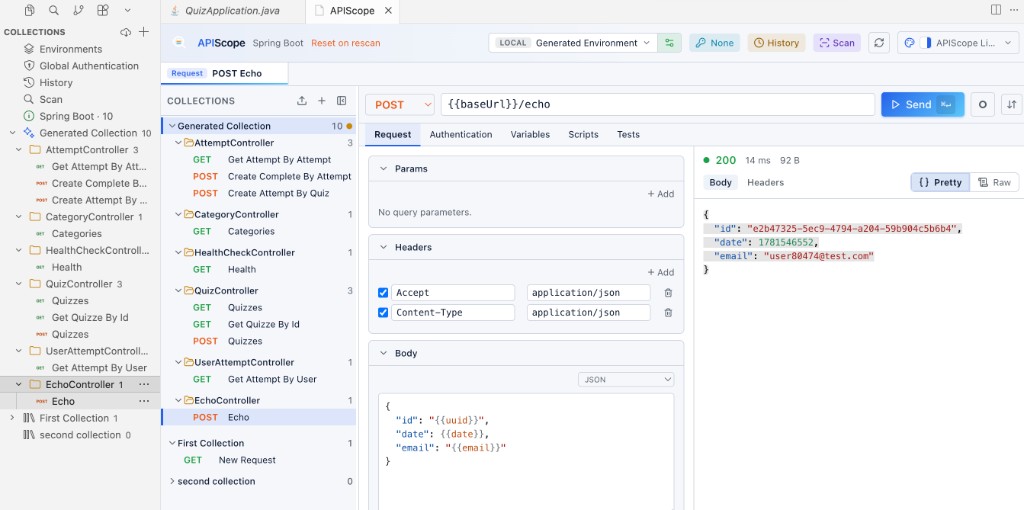
Open the Collections view from the VS Code activity bar (APIScope brand icon). The sidebar header shows the APIScope logo and a pin control. Below the shortcut rows, collections appear as expandable trees.
Tree icons
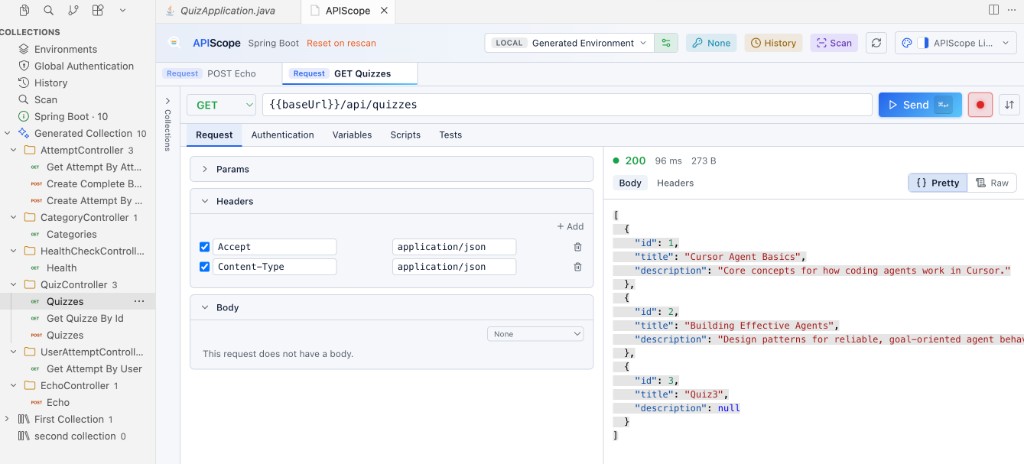
| Item | Icon |
|---|---|
| Generated Collection | Sparkle — refreshed from source scan |
| User collection | Library |
| Controller / folder | Themed folder (open/closed) |
| Request | Color-coded HTTP method badge (GET green, POST orange, PUT blue, PATCH purple, DELETE red) |
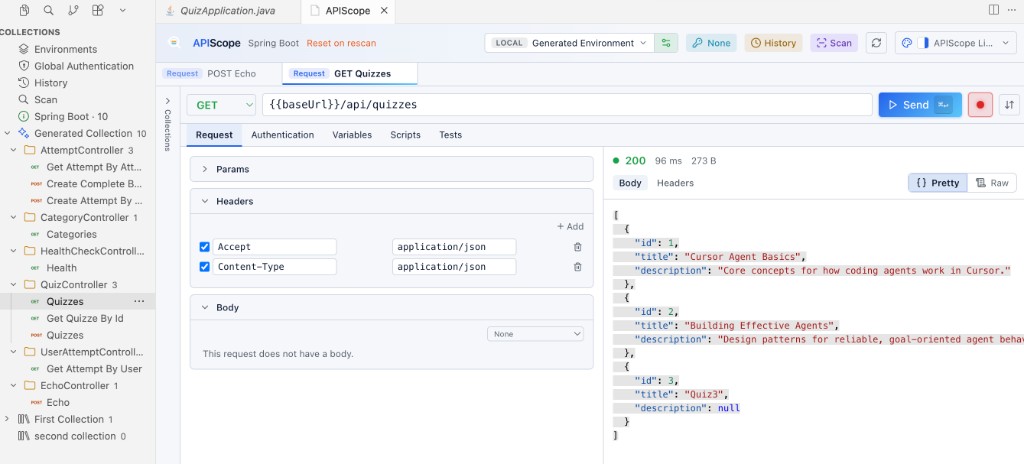
Scanned endpoints appear under folders named after their controller or router file — for example QuizController, AttemptController, and EchoController in a Spring Boot project. Request counts appear beside each folder name.
Generated vs user collections
| Type | ID convention | Editable | Rescan behavior |
|---|---|---|---|
| Generated | auto-generated | Yes, but may be overwritten on rescan | Refreshed from source scan |
| User | collection-001, … | Fully editable | Never touched by scan |
The Generated Collection is created automatically when you scan a project. Endpoints are grouped by controller or router file name.
User collections are created via New Collection (+ icon) in the collections sidebar or APIScope: New Collection from the Command Palette.
Collection tree
Each collection stores its hierarchy in tree.json:
collections/auto-generated/
├── collection.json    # metadata (id, name, type, isDirty)
├── tree.json          # folders and request references
└── requests/
    └── req-server-GET-health.json
The sidebar tree supports:
- Expand / collapse folders
- Drag-and-drop reordering
- Context menu actions (rename, duplicate, delete)
Folders and requests
Inside a user collection you can:
- New Folder — organize requests
- New Request — create a manual request (no source link)
- Rename / Duplicate / Delete — via context menu or Command Palette
Scanned requests in the Generated Collection include Open Source to jump to the implementing file.
Dirty state
When you edit requests in the Generated Collection, the collection is marked dirty (isDirty: true in collection.json). A rescan shows a confirmation dialog before overwriting your changes.
Import and export
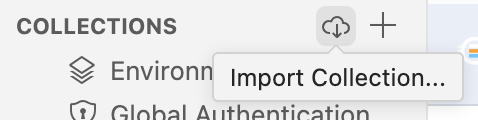
Import a collection from the cloud icon in the collections header:
Export via the collection context menu (⋯):
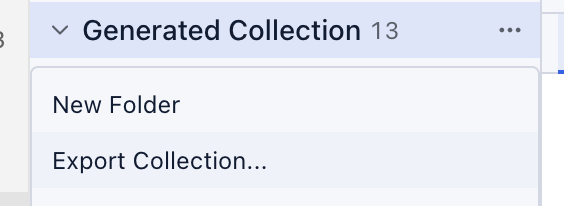
Exported files use spec version 1 and the .apiscope.json extension. See the Collection Export Specification for the file format.
Sidebar vs panel
The Collections activity bar view shows the tree for quick navigation. The main APIScope panel provides the full request editor and response viewer when you select a request.
Double-click or select a request to open it in the editor tab bar alongside drafts and history replays.