
History & Drafts
APIScope records every request execution locally. History is separate from collections — it captures what was actually sent and what came back.
History tab
Open History via the tab bar or APIScope: Open History Tab. Entries group by day under EXECUTIONS, newest first.
Each row shows the method, path signature, and execution time. Click an entry to replay the request in read-only mode.
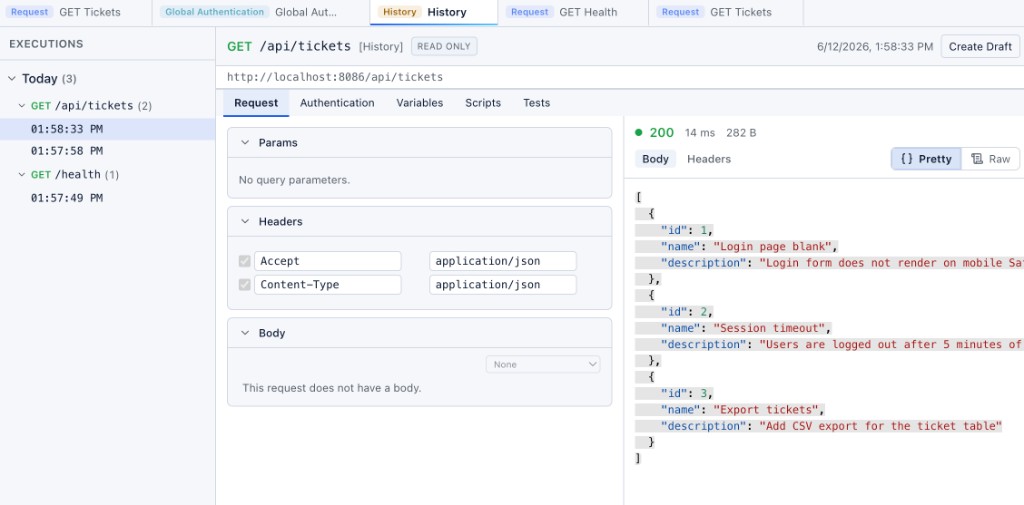
Use Create Draft to fork a history entry into an editable draft tab.
On-disk layout
History uses spec version history/v2:
history/
├── index.json
└── 2026/06/12/
    ├── index.json
    └── hist-001/
        ├── meta.json
        ├── request.json
        └── response.json   # optional when captureResponse is true
The global history/index.json lists available day paths. Each day folder has its own index with summary rows.
See the History v2 Specification for field definitions.
Capture settings
Each execution records whether the response body was captured (captureResponse). Large or binary responses may omit body storage while still recording status and timing in meta.json.
Replay
Select a history entry to open it in the execution panel. You can resend with the same or a different active environment.
File downloads in history
When REC was enabled before sending, file download responses are stored in history with full metadata. Replay from the EXECUTIONS tree to inspect or re-download:
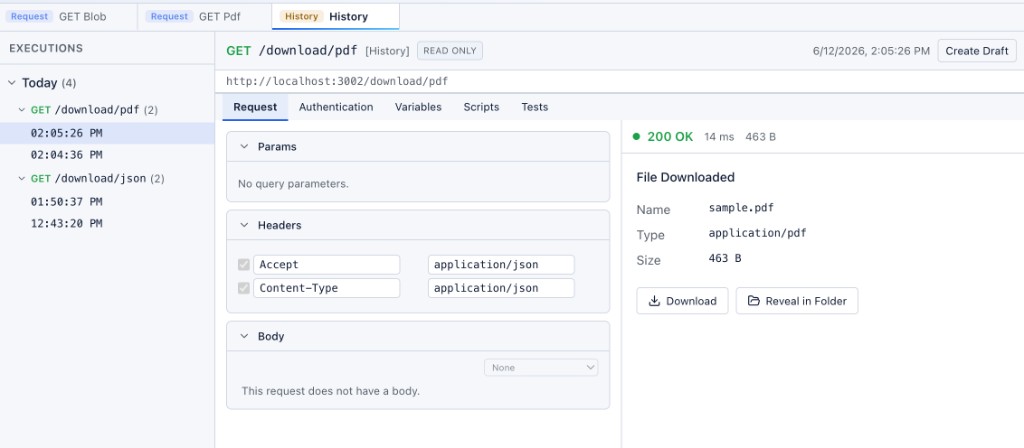
History entries for file responses include name, MIME type, and size even in read-only replay mode.
Drafts
Drafts are unsaved requests — useful for quick experiments without adding to a collection.
drafts/
└── draft-001.json
Draft documents use spec version draft/v1. Create a draft from history (Create Draft) or open a new request tab.
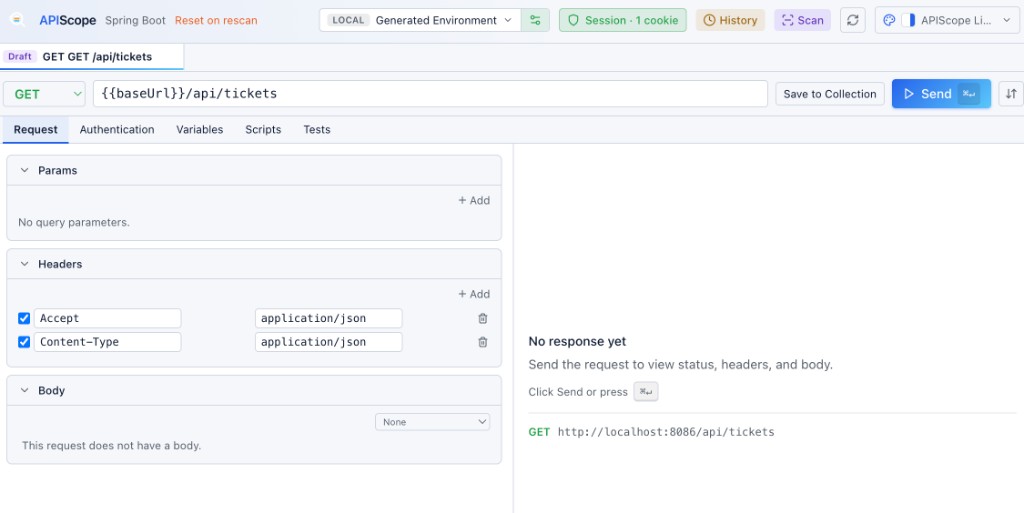
Drafts appear in the editor tab bar alongside collection requests. Click Save to Collection to persist them permanently.
Privacy
History may contain resolved URLs, headers, and response bodies including tokens. History is gitignored by default in .apiscope/.gitignore. Review before exporting or committing.
Retention
The UI shows recent days (default: 5). Older day folders remain on disk until manually removed.